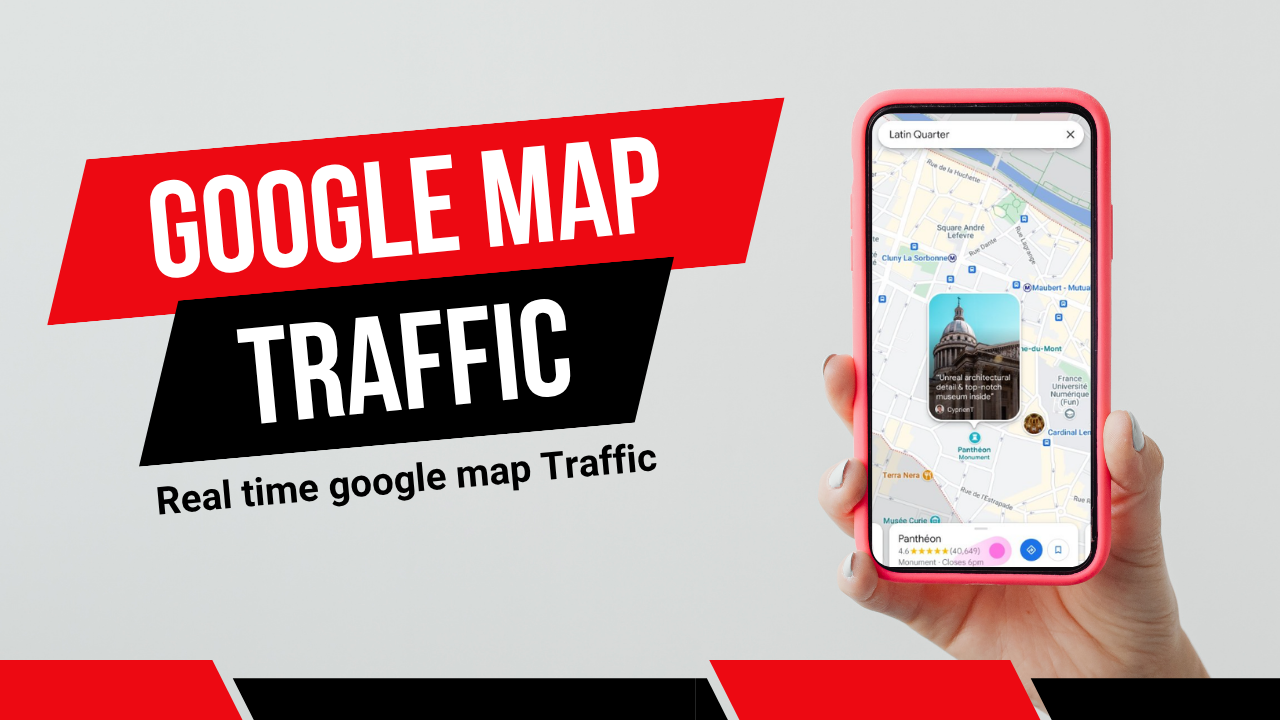
Flash Web Traffic - Ultimate SEO Traffic Generator & SERP Ranking and Google Map Automation Bot

How It WorksFlash Traffic Bot opens a real Chrome browser, goes to the search engine you choose (Google, Bing, etc.), types your keyword exactly like a human, finds your website in the results, clicks it, and then stays on the page for the dwell time you set — scrolling naturally. Every session uses a different user-agent, screen size, language, timezone, and browser fingerprint so each visit looks like a unique real user.Referral TrafficSearch Your Facebook Ads And give traffic increase your facebook reach Drive referral traffic from Facebook, YouTube, Twitter, Reddit, LinkedIn and custom URLs automatically. Diversify your traffic sources for a completely natural-looking profile.
How to Use Every FunctionStep 1 — License Activation (First Run)When you launch Flash Traffic Bot for the first time, a license window appears before anything else loads. You must enter a valid license key to continue.
- Paste your license key into the field
- Click Activate
- The key is validated online and bound to your device
- Once activated, the key is saved — you will not need to re-enter it next time
After activation the app moves to the browser setup step automatically.Step 2 — Browser Auto-Download (First Run Only)On first launch, Flash Traffic Bot automatically downloads a full Chrome browser (~180 MB) into its own folder. This is a one-time setup only.
- A progress bar shows download and extraction progress in real time
- Do not close the app during download
- If you want to skip and use Playwright’s built-in browser, click Skip
- To re-download Chrome later, go to Settings → Re-download Chrome
After setup completes the main window opens automatically.Main Pages — What Each Tab Does1. DashboardThe Dashboard is your live overview. It shows four metric cards at the top: Total Sessions, Successful, Failed, and Active Proxies. Below those is a live log that updates in real time as the bot runs, plus a Recent Sessions table showing engine, URL, and status of each completed visit.
- Use this page to monitor the bot while it is running
- The log counter shows how many events have been recorded in the current run
- No settings are changed here — it is a read-only monitoring page
2. Functions (Bot Control)This is the main control page where you configure and start the bot. All core settings live here.
- Quick Target: Enter one keyword and one URL for a fast single-target run
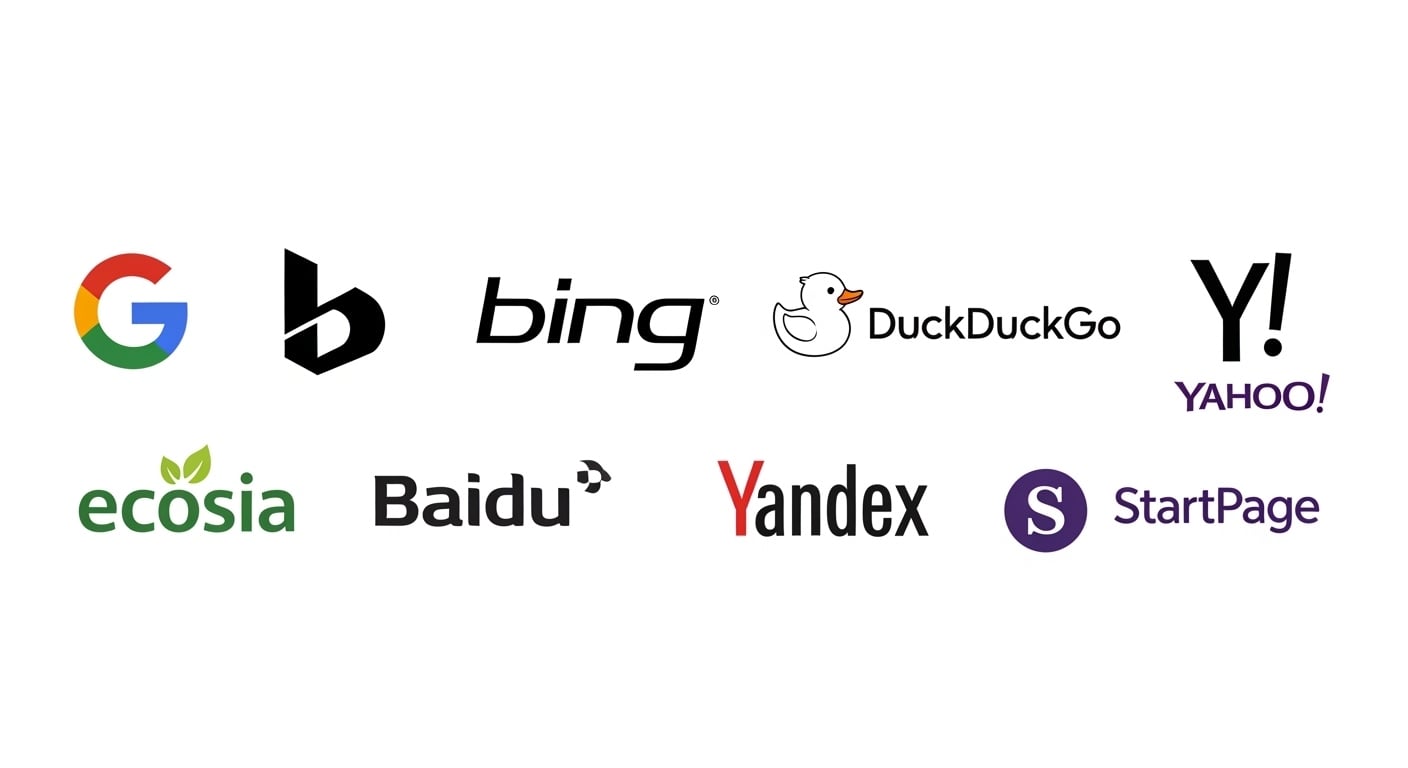
- Search Engines: Check which engines to use — Google, Bing, DuckDuckGo, Yahoo, Yandex, Brave, Ecosia, Startpage. The bot picks one randomly per session. Use Select All or Clear buttons to manage quickly.
- Total Sessions: How many visits to perform in total
- Dwell Time: How many seconds the bot stays on your website per visit (recommended: 30–120 seconds)
- Delay Range: Random wait time between sessions (e.g. 3–8 seconds). This makes traffic patterns look natural.
- Concurrency: How many browser sessions run at the same time. Set to 1 for safest results, or higher for speed. Higher concurrency requires more RAM.
- Target Mode: Cycle Through Targets goes through each URL in order. Random Target picks a URL randomly each session.
- Headless Mode: When ON, browsers run invisibly in the background. When OFF, you can watch each session open live.
- Page Scrolling: When ON, the bot scrolls up and down naturally during the dwell time to simulate reading behavior.
- Use Proxies: When ON, the bot assigns a proxy from your Proxy Manager list to each session.
Click
Start Bot to begin. Use
Pause to hold and resume. Use
Stop to end all sessions immediately.3. Multi TargetsUse Multi Targets when you want to send traffic to more than one URL at the same time. You can add up to 20 rows. Each row has one URL and multiple comma-separated keywords.
- Click Add Target to add a new row
- In each row, enter the full URL (e.g. www.quickgett.com) and your keywords separated by commas (e.g. buy shoes, cheap sneakers, shoe sale)
- The bot expands each keyword into a separate session automatically — 3 keywords on one URL creates 3 different sessions
- Use Add 3 Rows to quickly add multiple rows at once
- Use Clear All to remove all rows and start fresh
- On the Functions page, set Target Mode to Cycle or Random to control how rows are selected
Tip: For best SEO results, use real keywords that your website already ranks for. The bot will find your site in search results and click it naturally, which improves organic click-through-rate signals.4. SchedulerThe Scheduler lets the bot run automatically on a set timetable without you needing to be at the computer.
- Toggle Enable Scheduler to ON to activate it
- All Day mode: The bot runs all day on whichever days you select
- Timed Window mode: The bot only runs between a start time and end time (e.g. 09:00 to 22:00). Ideal for simulating business-hours traffic patterns.
- Active Days: Check which days of the week to allow. Quick buttons: Weekdays, Weekend, All, None.
- Schedule Repeat: Choose to run once per day, run continuously in a loop, or run N times then stop automatically.
- The Scheduler Status section shows whether the scheduler is active and a countdown to the next trigger
When the schedule matches the current time and day, the bot starts automatically using all settings from the Functions page. If the scheduler is OFF, the bot only runs when you click Start manually.5. Proxy ManagerProxies give each session a different IP address. This is important for running many sessions safely without being rate-limited by search engines.
- Auto Scrape tab: Click Scrape to automatically download a fresh list of free HTTP/HTTPS proxies from a live source. SOCKS proxies are filtered out automatically.
- Manual Input tab: Paste your own proxies one per line, then click Add Proxies. Click Load File to import a .txt file from your computer.
- Validate: After adding proxies, click Validate to test which ones are alive. The table shows speed in ms and real IP for each working proxy. Dead proxies are shown in red.
- Threads: Set how many proxies to test simultaneously (default 60). Higher thread count = faster validation.
- Export: Save your current proxy list as a .txt file for reuse in future sessions
- Clear: Remove all proxies from the list
 How to Use Every FunctionStep 1 — License Activation (First Run)When you launch Flash Traffic Bot for the first time, a license window appears before anything else loads. You must enter a valid license key to continue.